
How to Contact a Host on Native Spaces: Step-by-Step Guide
✨ Contact a host in a few clicks
Found the perfect venue for your next event on Native Spaces? The next step is to get in touch with the host to check availability, ask your questions and receive a personalised quote.
In this guide, we walk you through the whole process, step by step, with screenshots.
🏡 Step 1: Go to the venue page
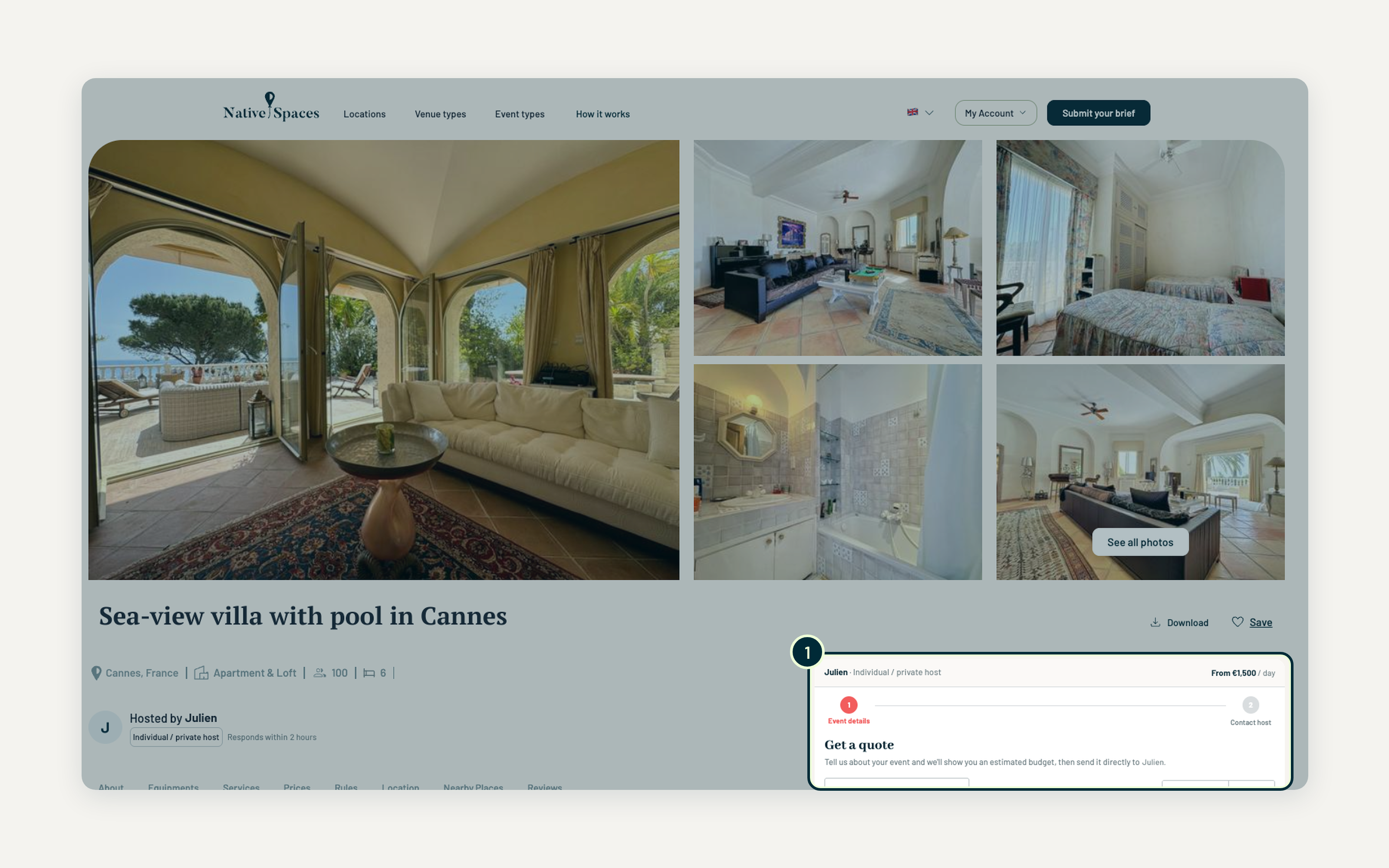
Once you've found a venue you like, open its page. On the right, you'll see the Get a quote panel: this is where your request starts.
The progress bar at the top of the panel shows the two stages ahead: Event details, then Contact host.
📝 Step 2: Tell the host about your event
Fill in the form. Each detail helps the host check straight away that the venue can welcome your event, so take a minute to get it right.
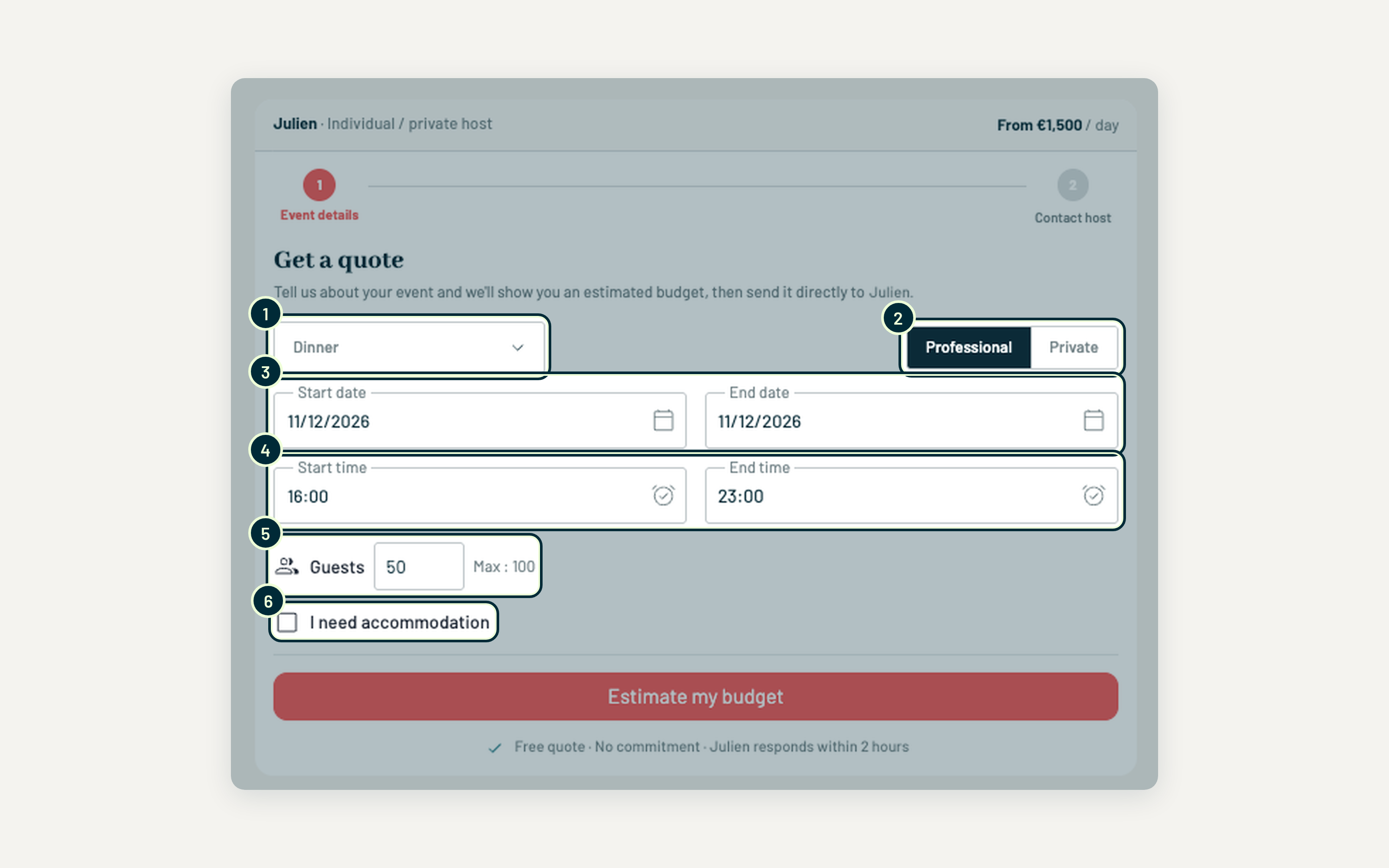
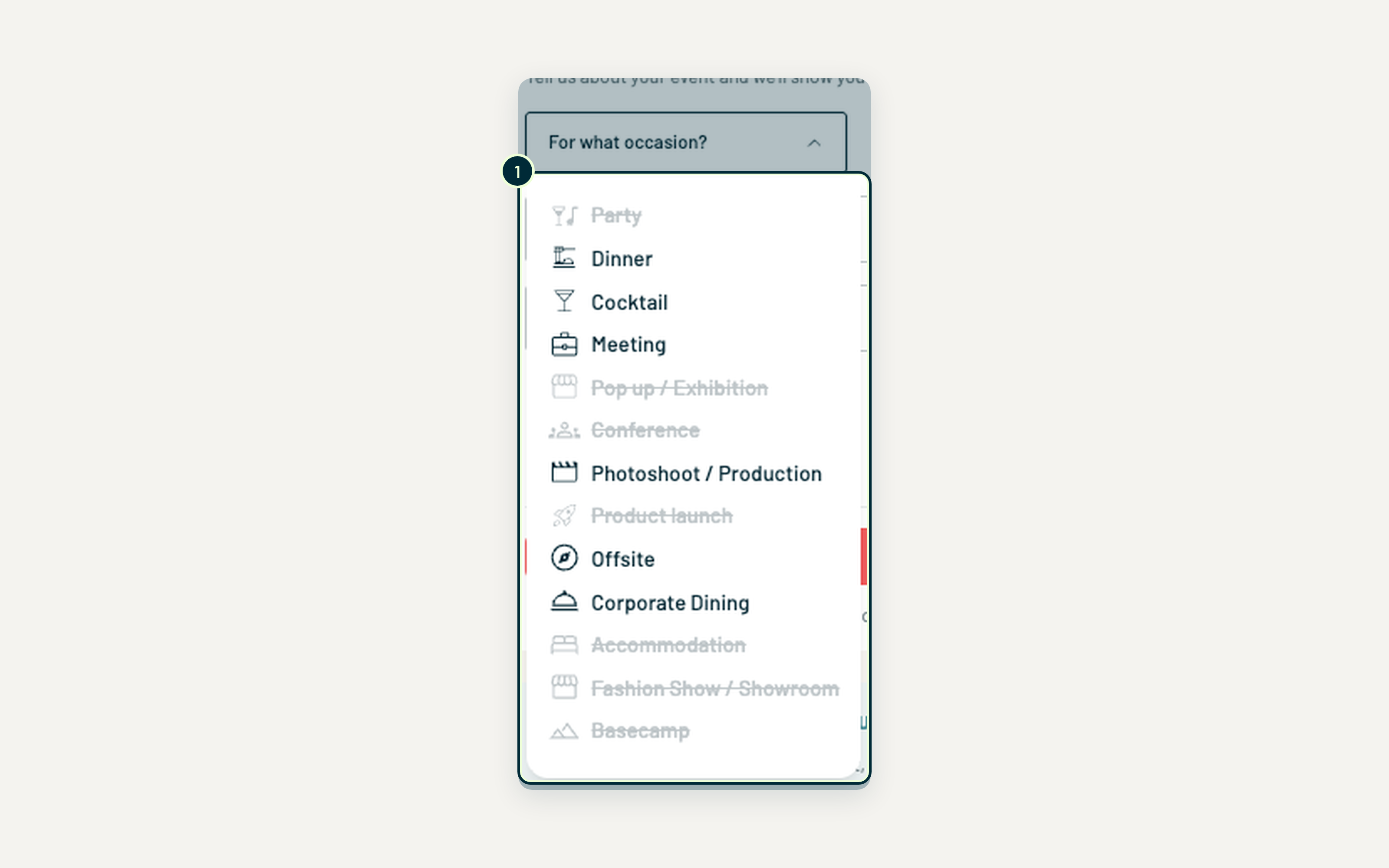
1. Occasion. Choose the type of event you're planning from the list. Only the event types this venue accepts can be selected: the greyed-out, crossed-out ones aren't allowed by the host. If your event type isn't available, this venue isn't the right match. Submit a brief and our team will find you one that is.
2. Professional or private. Tell the host whether this is a work event (seminar, client dinner, team offsite) or a personal one (birthday, wedding, dinner with friends). Many hosts have different rules and conditions for each, especially for private parties.
3. Start and end dates. Pick the day or days you need the venue. For a multi-day event, set the end date to your last day. This is how the host checks availability.
4. Start and end times. Add the times you'd like access to the venue, including the time you need to set up beforehand and clear up afterwards, not just the event itself. Some venues have restrictions on late finishes or noise, so a realistic schedule avoids surprises.
5. Guests. Enter how many people you expect. The venue's maximum capacity is shown next to the field, so you can see at a glance whether your group fits. Capacity can vary with the setup (seated dinner or standing cocktail): check the Capacity section of the venue page if you're close to the limit.
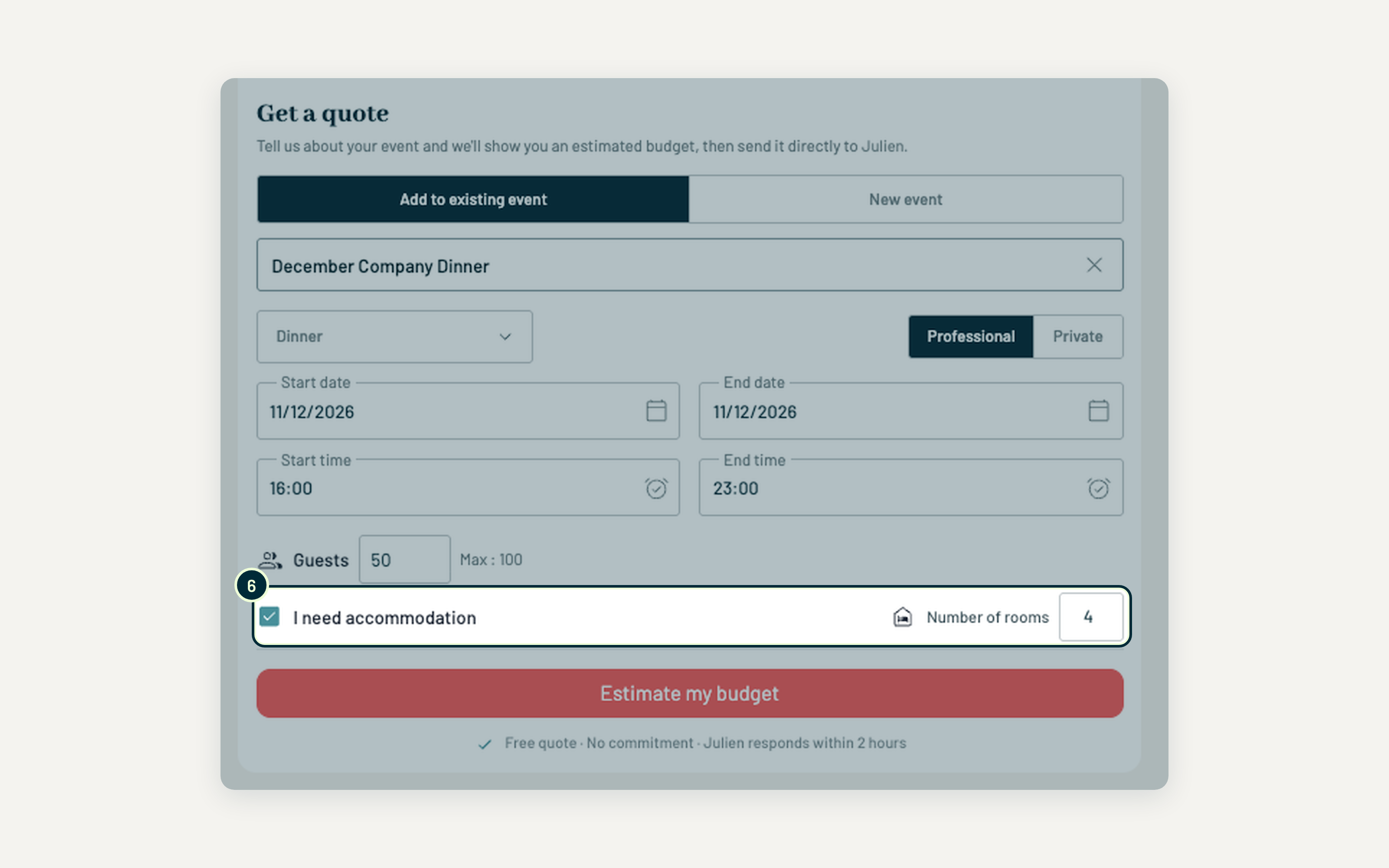
6. Accommodation. Tick this box if your guests need to stay overnight, then enter the number of rooms you need in the field that appears next to it. The host can then check room availability and include it in their offer.
👉 The more accurate these details are, the more reliable your budget estimate, and the faster the host can confirm.
🔐 Step 3: Create your free account (or log in)
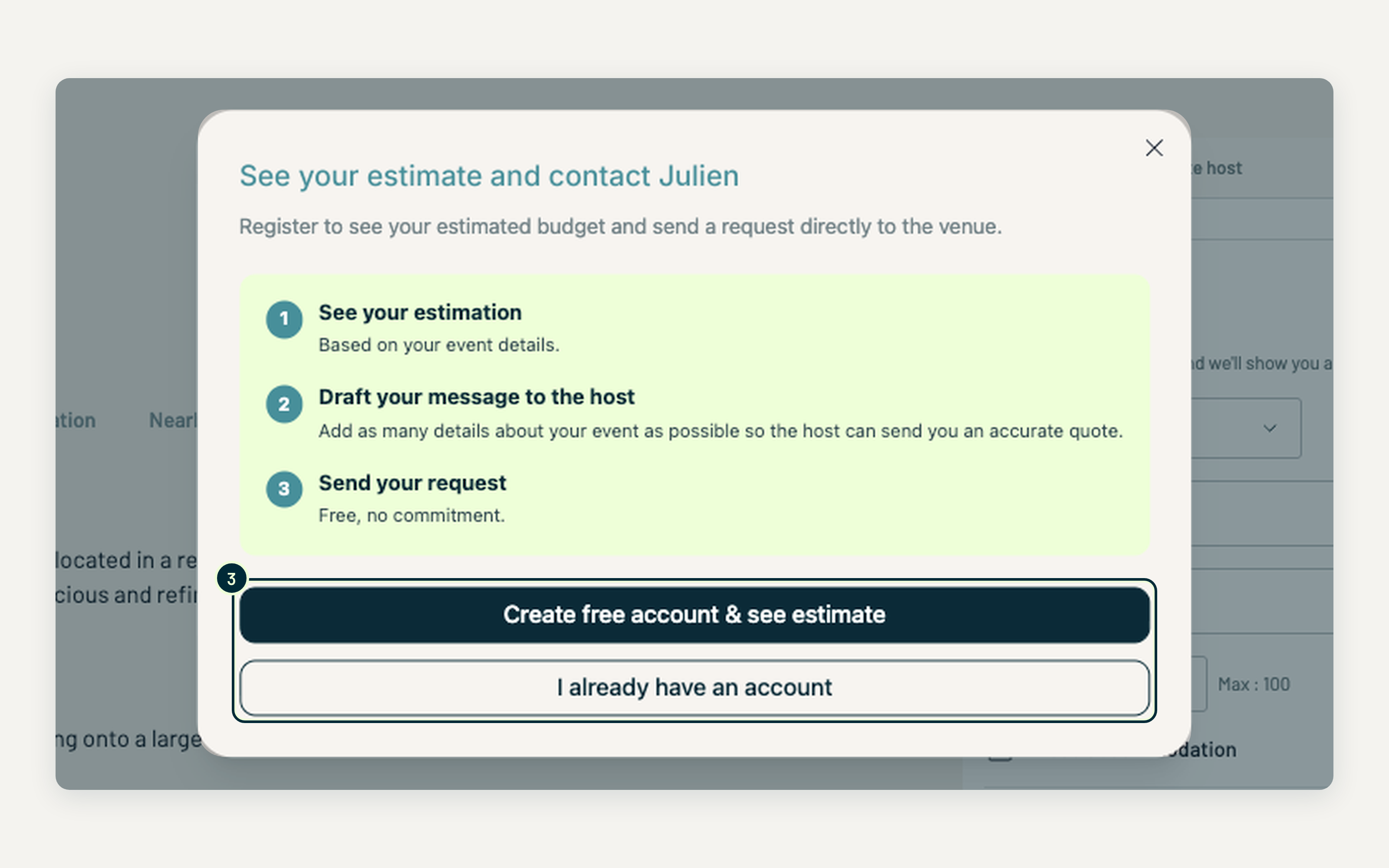
When you click Estimate my budget, a window asks you to sign in. An account is needed to see your estimate and send your request: the host knows who they're talking to, and you can follow the whole conversation from your Native Spaces account.
- New to Native Spaces? Click Create free account & see estimate. It's free and doesn't commit you to anything.
- Already have an account? Click I already have an account and log in.
🏷️ Step 4: Name your event
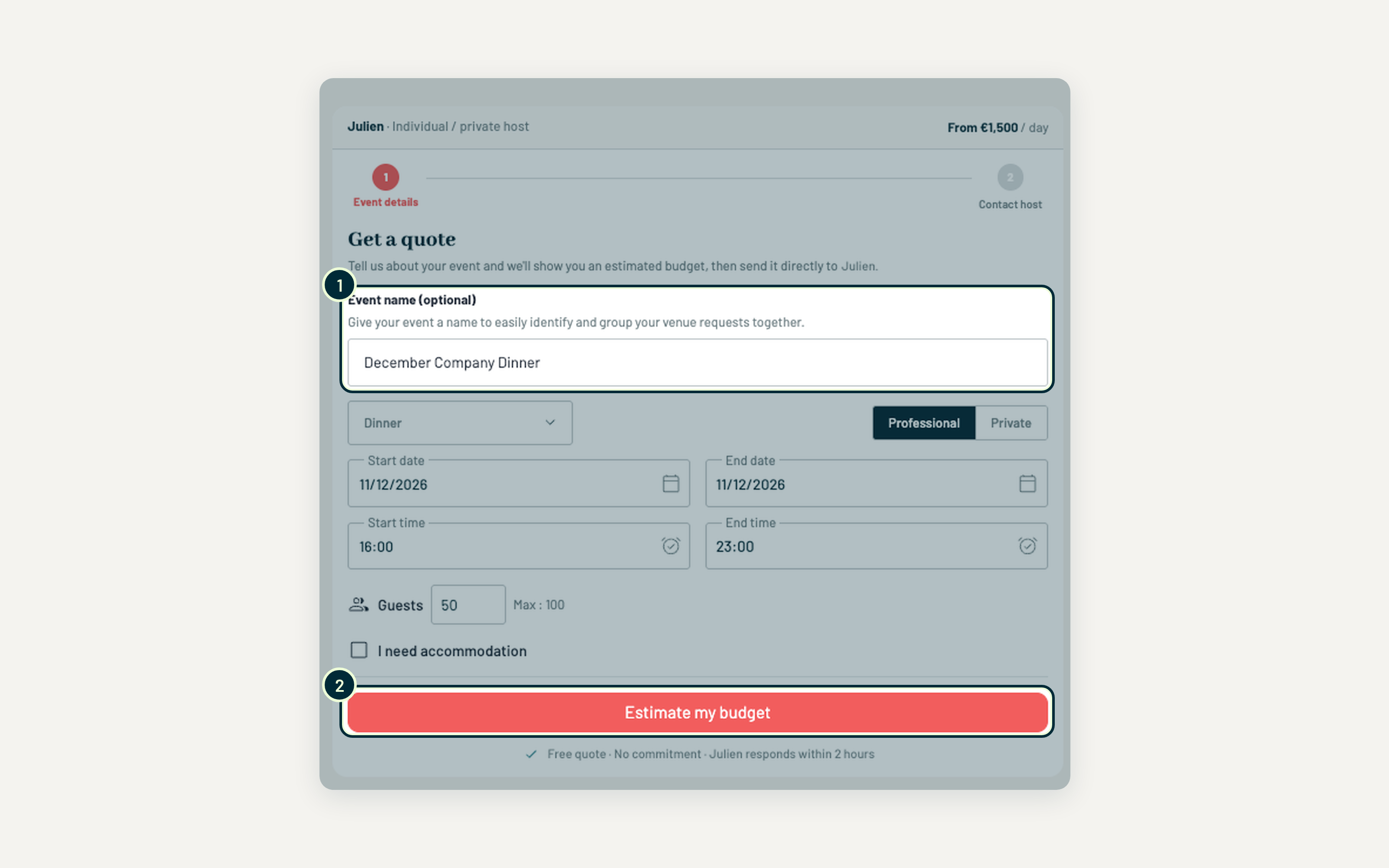
Once you're logged in, you're brought back to the form with your details still filled in. A new field now appears at the top.
1. Event name (optional). Give your event a name you'll recognise, for example "December Company Dinner". If you're contacting several venues for the same event, all your requests are grouped under that name, so you can compare offers easily from your account.
2. Estimate my budget. Check that everything is correct, then click the button to see your estimate.
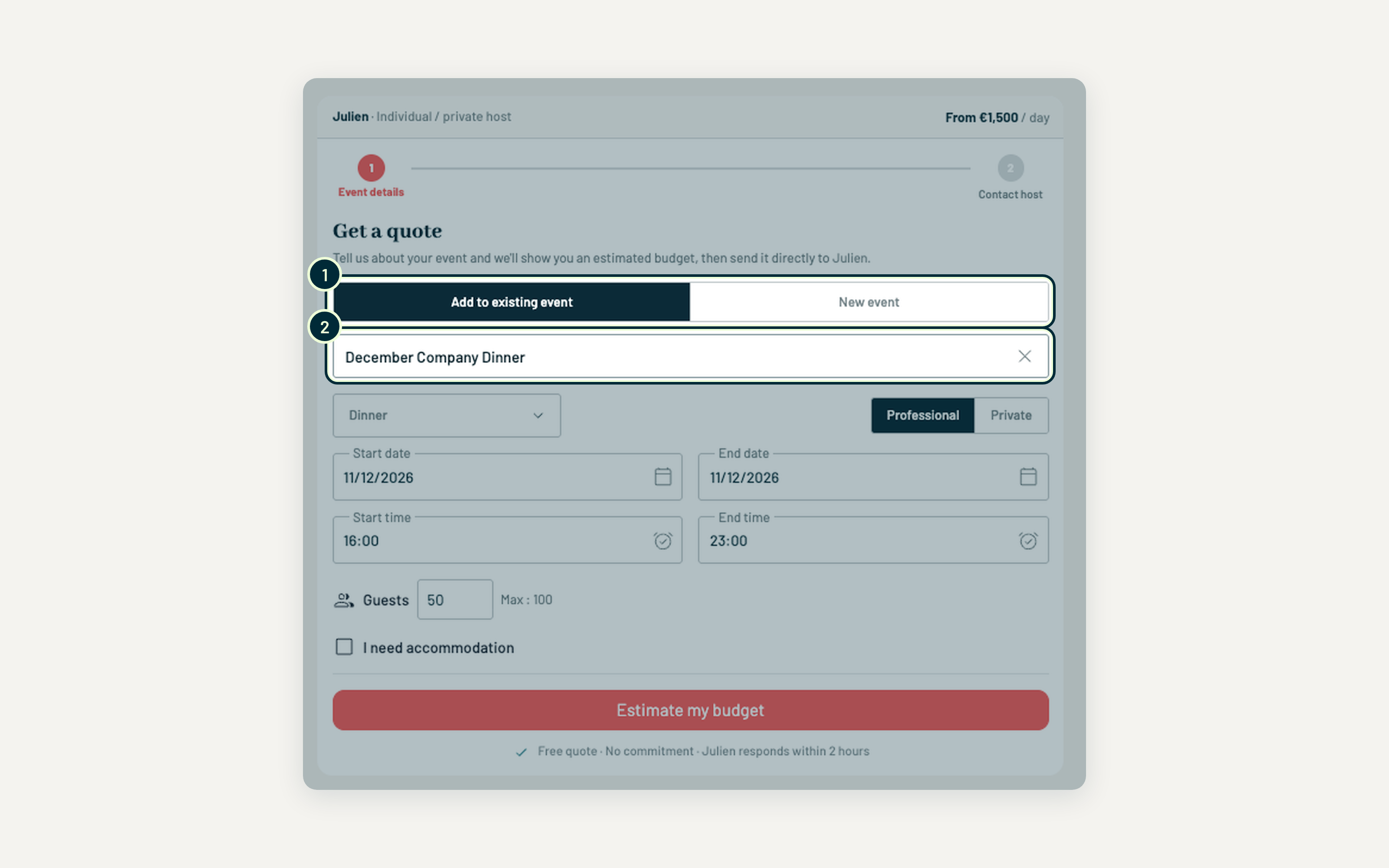
💡 Already planning an event on your account? The form then shows a toggle at the top. Add to existing event links this new venue request to an event you've already created: pick it from the list and its details fill in automatically, so you only need to check them. Choose New event to start from scratch.
💰 Step 5: Check your estimated budget
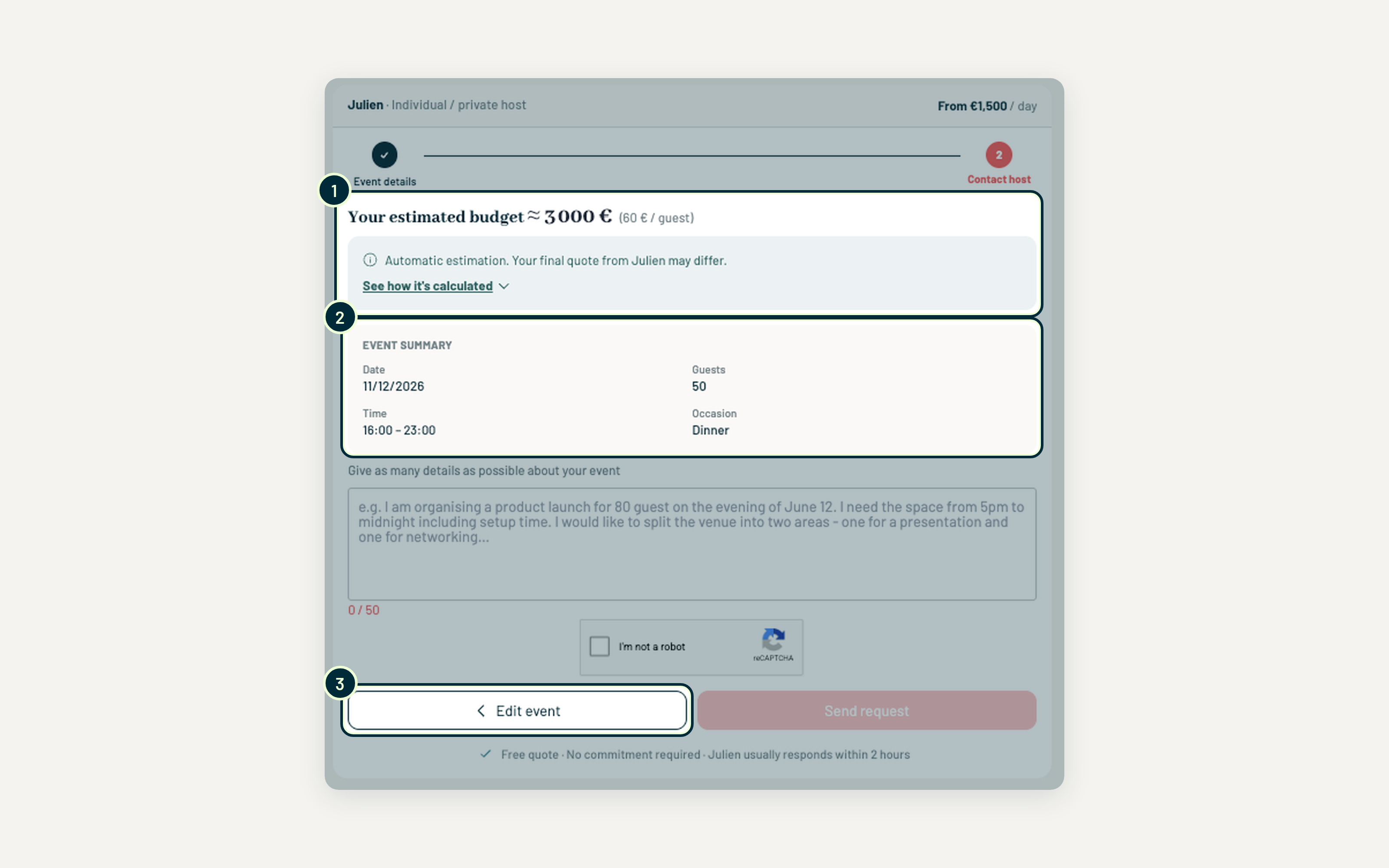
You're now on the second stage, Contact host.
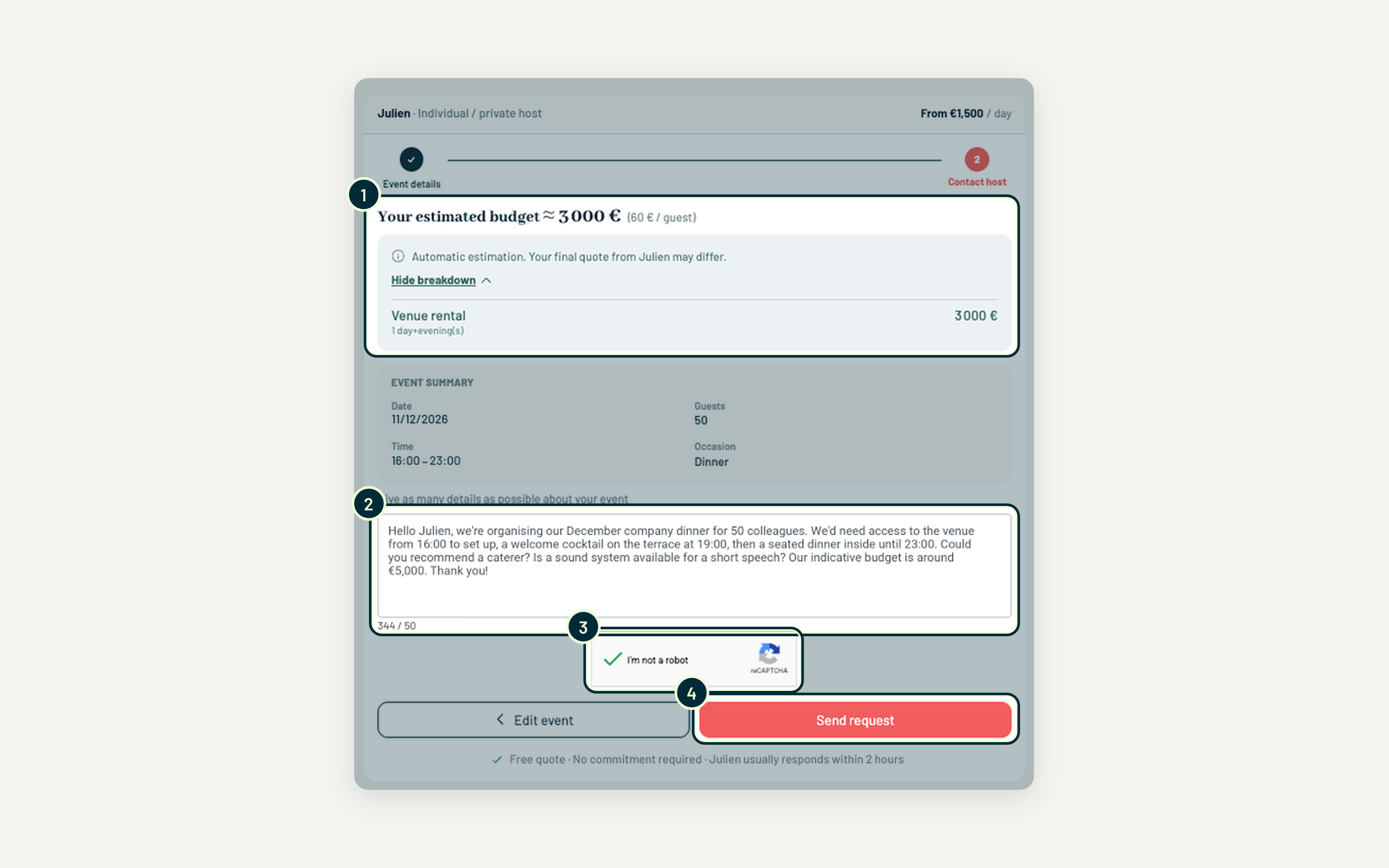
1. Your estimated budget. The platform calculates an approximate budget from your event details, shown as a total and per guest.
⚠️ This is an automatic estimate. The host's final quote may differ depending on your exact needs (catering, equipment, extra services).
2. Event summary. A recap of your date, times, number of guests and occasion. Take a few seconds to check it: this is exactly what the host will receive.
3. Edit event. Spotted a mistake? Click Edit event to go back and correct your details before sending anything.
📬 Step 6: See the breakdown and write to the host
1. Your estimate and its breakdown. Click See how it's calculated to open the detail behind your estimated budget. You'll see each item that makes up the total, for example the venue rental and the duration it covers.
2. Your message to the host. This is the most important part of your request. Give as many details as possible so the host understands your event and can send you an accurate quote. Your message needs at least 50 characters; the counter below the field shows where you are.
Think about including:
- The occasion and who your guests are (colleagues, clients, friends)
- Your schedule, including setup and clear-up time
- The format: seated dinner, cocktail, presentation, DJ set…
- The services you need: catering, sound system, decoration, accommodation
- Your indicative budget, if you have one
🎯 A complete message gets a faster, more accurate offer and avoids back-and-forth.
3. Security check. Tick I'm not a robot.
4. Send request. Once your message is long enough and the box is ticked, the button turns from pale to full colour. Click it to send your request directly to the host.
📂 Step 7: Find your request in My events
That's it, your request is sent! You can find it at any time in the My events tab of your account.
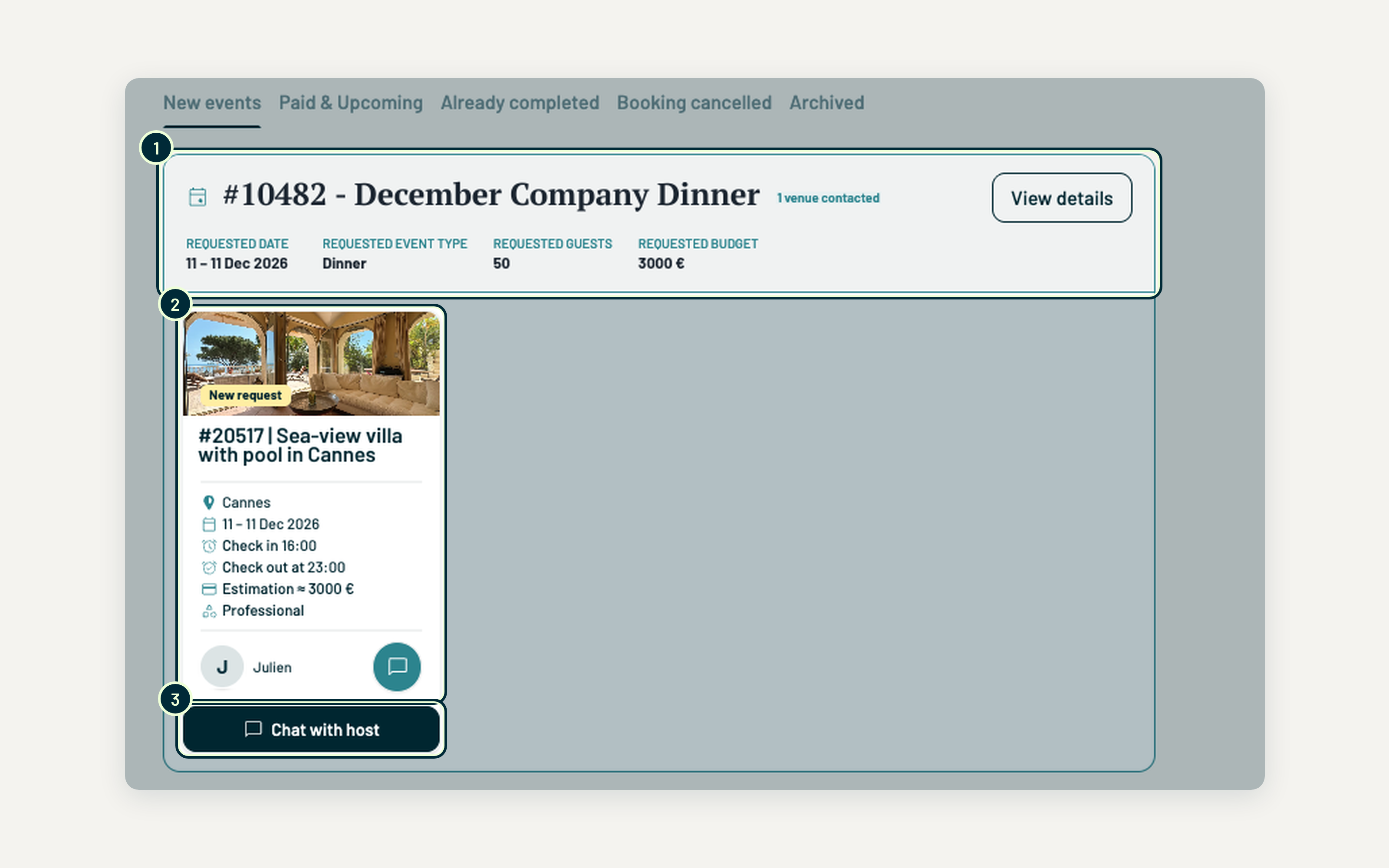
1. Your event. All the key information in one place: requested date, event type, number of guests and budget. The label next to the name shows how many venues you've contacted for this event. Click View details to see more, including suggestions from the Native Spaces team.
2. Your venue request. Each venue you've contacted appears as a card under your event, with its status ("New request" here), dates, times and estimate. Contact several venues for the same event and they're all grouped together.
3. Chat with host. Click to open your conversation with the host.
💬 Step 8: Chat with the host and receive your quote
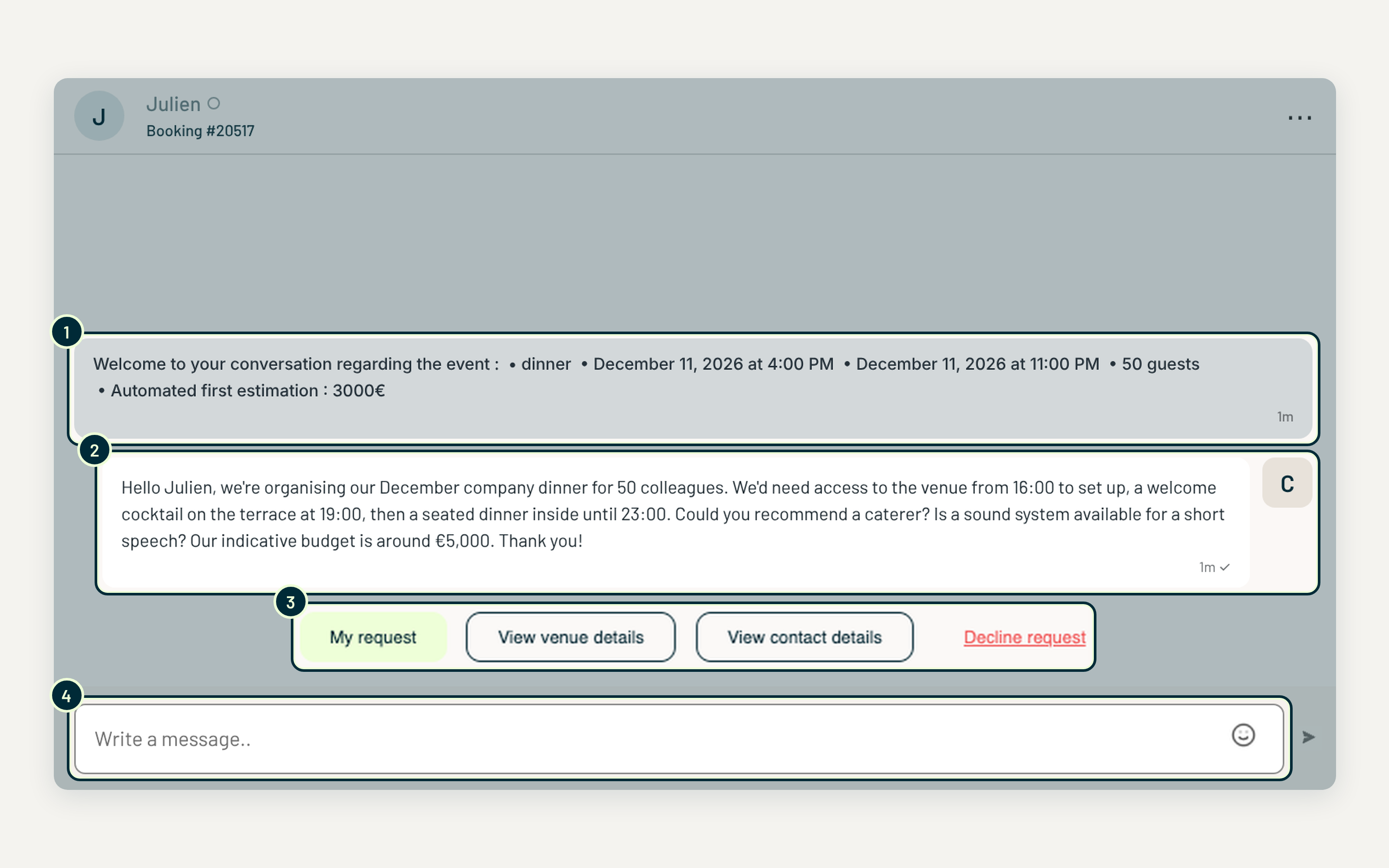
Your conversation with the host happens directly in your Messages.
1. Event recap. The conversation opens with an automatic summary of your request: occasion, dates and times, number of guests and estimate.
2. Your message. The message you wrote in step 6 is the first thing the host reads.
3. Quick actions. Review your request, view the venue details or see the host's contact details. If your plans change, you can also decline the request.
4. Continue the conversation. Reply to the host, ask questions and adjust details until everything is confirmed. The host sends you their quote here.
🔔 Tip: turn on browser notifications (top left of your messages) so you don't miss the host's reply.
🎯 Need help?
If you have any questions, our team is here to help. Not sure which venue fits your event? Let us do the search for you.